How to Convert a Screenshot to PDF (iPhone, Android, Windows, Mac)
Whether it is one receipt or forty pages of chat history, here is how to get screenshots into a single tidy PDF — on any device, without installing anything.
The fastest way, on any device
Open the image to PDF tool, pick your screenshots, tap Create PDF. Each image becomes one page in the order you selected them, the file downloads straight to your device, and nothing is ever uploaded to a server. There is no watermark and no page limit.
That matters more than it sounds. Most free PDF sites upload your screenshots to their servers — screenshots that routinely contain bank balances, messages, medical results and addresses. Doing the conversion in your own browser means none of that leaves your device.
iPhone: the built-in method
- Open Photos and select your screenshots.
- Tap the Share button, then Print.
- On the print preview, pinch outwards on the page thumbnail — it opens as a PDF.
- Tap Share and save it to Files.
It works, but the order is whatever Photos decides, the pages get a print margin, and you cannot rearrange anything. For more than three or four images the browser tool is faster.
Android
- Open Google Photos, select your screenshots.
- Share → Print (or the printer icon).
- Choose "Save as PDF" as the destination and tap the save button.
Older Android builds place this under Files → Select → Print instead.
Windows
- Select all the screenshots in File Explorer.
- Right-click → Print.
- Set the printer to "Microsoft Print to PDF", pick "Full page photo", then Print.
Mac
- Select the screenshots in Finder and press the spacebar for Quick Look, or open them all in Preview.
- In Preview, select every thumbnail in the sidebar.
- File → Print → PDF dropdown → Save as PDF.
Keeping the PDF small enough to email
Phone screenshots are PNG files, and PNG is a bulky format for on-screen content. Ten raw screenshots can produce a 25 MB PDF that most email systems reject at their 20–25 MB limit. Two things fix it:
- Let the images be re-encoded as JPEG pages — the tool here does that automatically at 92% quality, which is visually identical for screenshots.
- If it is still too big, shrink the images first with compress to an exact KB size, then build the PDF.
More tactics in reduce image size for email.
Crop before you convert
A screenshot includes your status bar, notification icons, battery percentage and often part of another conversation. Trim it with the image cropper before building the PDF — it looks more professional and removes information you may not want to share.
When you want images, not a PDF
If the destination asks for photos rather than a document, convert the screenshots to JPG instead with the screenshot to JPG converter. The full explanation of why screenshots arrive as PNG is in converting screenshots to JPG.
Quick reference
- Several screenshots, one document? Use the image to PDF tool.
- Email bouncing? Compress the images first.
- Sensitive content? Crop it out — and use a tool that does not upload.
- Need editable text? A PDF of screenshots is still a picture. You need OCR for that.
Gear we recommend for this workflow
As an Amazon Associate we earn from qualifying purchases. Affiliate disclosure.
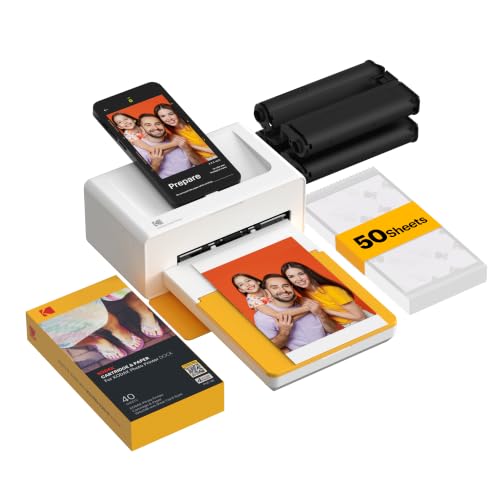
KODAK Dock Plus 4x6 Photo Printer, Smartphone Docking, 4PASS, 50 Sheets | Bluetooth, iPhone & Android Smartphone Compatible, Charge While Printing, Water, Fingerprint and Fade Resistant
$129.99
Check price on Amazon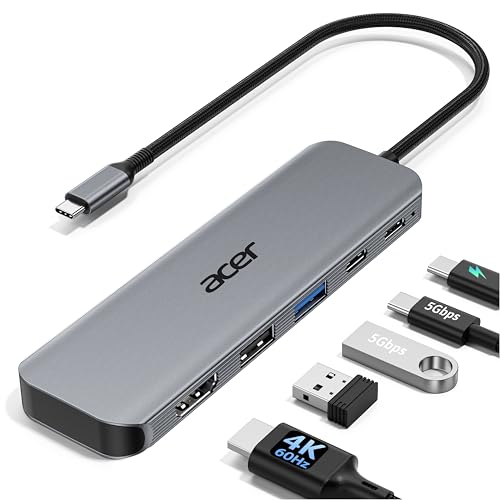
Acer USB C Hub, 5-in-1 USBC to HDMI Adapter with 4K@60Hz for Laptop/Mac | USBC Splitter Docking Station with HDMI 2.0, 100W PD, USB-C, USB-A 3.0 & USB-A 2.0 Data Ports for iPad Pro, iPhone 17 Pro Max
$15.97
Check price on Amazon
Samsung T7 Shield Portable SSD 1TB, USB 3.2 Gen 2, Up to 1,050 MB/s | Rugged, IP65 Water Resistant, External Solid State Drive for Photographers, Content Creators and Gaming (MU-PE1T0S/AM), Black
Best for photographers backing up thousands of RAW files
$267.00
Check price on Amazon
Nelko PP01 Photo Printer, 2x3 Portable Photo Printer, Mini Printer, Pink | Instant Color Sticker Printer for Smartphones, Sticky-Back Photos, Bluetooth Compatible with iOS & Android, AI App Editing
$69.99
Check price on AmazonPrices as of Oct 22, 2026, 4:41 AM UTC. Product prices and availability are accurate as of the date/time indicated and are subject to change. Any price and availability information displayed on Amazon.com at the time of purchase will apply to the purchase of this product.
Image Optimization Tips
Get weekly tips on image formats, compression, and web performance.
No spam, unsubscribe anytime. We respect your privacy.