DPI vs PPI: The Difference, Explained Without the Jargon
Two acronyms, endlessly swapped, and almost every argument about them online is about the wrong thing. Here is what each one really measures — and why your screen does not care about either.
The one-sentence version
PPI (pixels per inch) describes pixels — the squares in a digital image or on a screen. DPI (dots per inch) describes ink dots a printer sprays on paper. Your file has pixels; your printer has dots. Everything else follows from that.
Where the confusion comes from
Photoshop, Lightroom and most export dialogs label their resolution box "DPI" even though the value they write into the file is really pixels per inch. Print shops then ask for "300 DPI", meaning "please give me enough pixels". So the two words became interchangeable in everyday use, even though only one of them applies to a file sitting on your hard drive.
| PPI | DPI | |
|---|---|---|
| Measures | Pixels per inch | Ink dots per inch |
| Lives in | Image files, screens | Printer hardware |
| Changes detail? | Only if you resample | No — printer setting |
| Typical values | 72, 96, 300, 460 (phone screens) | 600–4800 on inkjets |
| Matters for web? | No | No |
Why a printer's DPI is higher than your image PPI
An inkjet builds one visible pixel out of many tiny dots of cyan, magenta, yellow and black. It needs several dots per pixel to mix a colour, which is why a printer rated at 1440 DPI is still perfectly happy with a 300 PPI file. A higher printer DPI does not mean you need a higher-resolution image.
The only number that actually exists in your file
Your image contains exactly one real quantity: its pixel dimensions, for example 4000 × 3000. The PPI tag is a label. Change the label from 72 to 300 and not a single pixel moves — you have only told a printer to make each inch contain 300 of them instead of 72, which makes the printed sheet smaller and sharper.
Print size = pixels ÷ PPI. A 4000 × 3000 photo prints 13.3 × 10 inches at 300 PPI, or 26.7 × 20 inches at 150 PPI. Same file, same detail, different physical size. Work out yours with the DPI and print size calculator, or set the tag itself with the change image DPI tool.
"Save it at 72 DPI for the web" is obsolete advice
Browsers ignore the resolution tag entirely. A web image is displayed by its pixel dimensions and the CSS around it, full stop. The 72 figure comes from the original Macintosh screen in 1984, which really did show 72 pixels per inch. Modern phones show 400 to 500. Nothing in a browser reads the tag, so setting it to 72 achieves precisely nothing — including no reduction in file size.
What genuinely shrinks a web image is fewer pixels and better compression. See compressing images for your website and the image SEO guide.
Screen PPI: the third meaning
Hardware reviewers use PPI to describe display density — a 6.1-inch phone at 2556 × 1179 works out to about 460 PPI. That is a property of the panel, not of your photo. It explains why a screenshot from a modern phone contains far more pixels than the interface appears to occupy, and why those screenshots are so large before you convert them to JPG.
A practical cheat sheet
- Web, email, social: ignore DPI completely. Control pixel width and file size.
- Home photo printing: aim for 240–300 PPI at your final print size.
- Posters and banners viewed from a distance: 100–150 PPI is plenty.
- Fine-art or magazine work: 300 PPI, tagged 300, no exceptions.
- Portal insists on 300 DPI: tag the file at 300 and resubmit — usually all it checks.
When you genuinely need more pixels
If your photo is 1200 × 800 and you want a sharp 16 × 20 inch print, no tag will save you: you need roughly 4800 × 6000 pixels. Either reshoot at higher resolution, or accept a smaller print. Upscaling invents detail that was never captured, and it shows on paper far more than on screen. The rest of the print workflow — colour, bleed, format — is covered in preparing images for printing.
Gear we recommend for this workflow
As an Amazon Associate we earn from qualifying purchases. Affiliate disclosure.

BenQ PD2706U Mac-Ready Monitor 27” 4K UHD, 90W USB-C, 99% sRGB, 95% P3, DeltaE ≤3, DisplayHDR 400, IPS, AQCOLOR, Factory-Calibrated, Uniformity, HotKey Puck, Ergonomic, DisplayPort, KVM, USB Hub
Best for accurate color when editing photos
$399.99
Check price on Amazon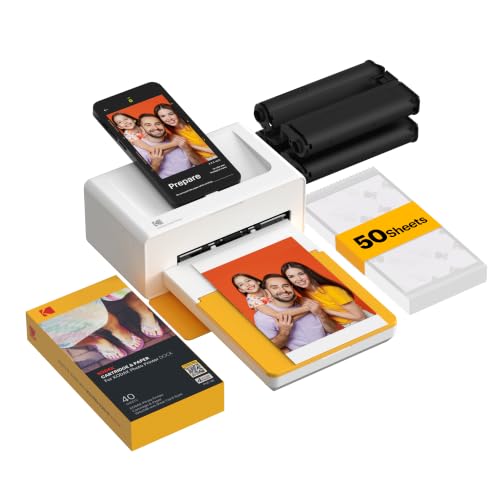
KODAK Dock Plus 4x6 Photo Printer, Smartphone Docking, 4PASS, 50 Sheets | Bluetooth, iPhone & Android Smartphone Compatible, Charge While Printing, Water, Fingerprint and Fade Resistant
$129.99
Check price on Amazon
Reastar Glossy Photo Paper 8.5 × 11, 36 Sheets Inkjet Photo Printer Paper | Instant Dry, 180gsm/48lb, Blank Back, Reflective Finish, Advanced Cast Coating, DIY Chip Bag/Flyer/Card/Calendars/Brochures
$6.99
Check price on Amazon
SpyderPro Monitor Calibrator & Screen Color Calibration Tool | Ensures accurate color for photo and video editing across monitors and laptop displays
$199.00
Check price on AmazonPrices as of Oct 22, 2026, 4:41 AM UTC. Product prices and availability are accurate as of the date/time indicated and are subject to change. Any price and availability information displayed on Amazon.com at the time of purchase will apply to the purchase of this product.
Image Optimization Tips
Get weekly tips on image formats, compression, and web performance.
No spam, unsubscribe anytime. We respect your privacy.
Want to know what your own file is set to? The image DPI checker reads the stored DPI and shows how large the picture prints sharply at 300 DPI.