Rotate and Flip an Image
Straighten a sideways phone photo or un-mirror a selfie, then save it so every app shows it the right way up. Runs entirely on your device.
Updated May 2026 · Free · Works entirely in your browser
Why the same photo looks right on your phone and sideways everywhere else
Cameras almost never physically rotate the picture. They save it in the sensor's native orientation and add a small EXIF tag that says "display this turned 90 degrees". Photos apps read that tag; a lot of upload forms, printing kiosks and older desktop programs do not — so the picture flops on its side.
Rotating here writes the correct orientation into the pixels themselves, so there is no tag left to ignore. You can inspect or strip the rest of that hidden data with the EXIF viewer and remover.
Mirrored selfies
Front cameras preview you mirrored and some phones save it that way, which is why text in the background reads backwards. Flip horizontal fixes it in one tap.
Gear we recommend for this workflow
As an Amazon Associate we earn from qualifying purchases. Affiliate disclosure.
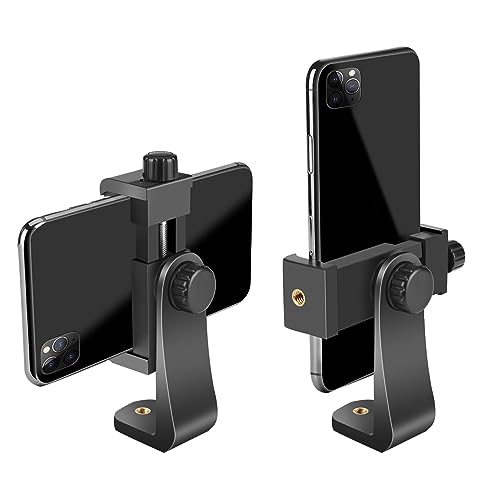
Smartphone Holder/Vertical and Horizontal Tripod Mount Adapter | Premium Rotatable Bracket, 1/4 in Screw, Adjustable Clip for iPhone, Android Cell Phone, Selfie Stick, Camera Stand
Best universal mount for phone tripods
$6.99
Check price on Amazon
BenQ PD2706U Mac-Ready Monitor 27” 4K UHD, 90W USB-C, 99% sRGB, 95% P3, DeltaE ≤3, DisplayHDR 400, IPS, AQCOLOR, Factory-Calibrated, Uniformity, HotKey Puck, Ergonomic, DisplayPort, KVM, USB Hub
Best for accurate color when editing photos
$399.99
Check price on Amazon
Samsung T7 Shield Portable SSD 1TB, USB 3.2 Gen 2, Up to 1,050 MB/s | Rugged, IP65 Water Resistant, External Solid State Drive for Photographers, Content Creators and Gaming (MU-PE1T0S/AM), Black
Best for photographers backing up thousands of RAW files
$267.00
Check price on Amazon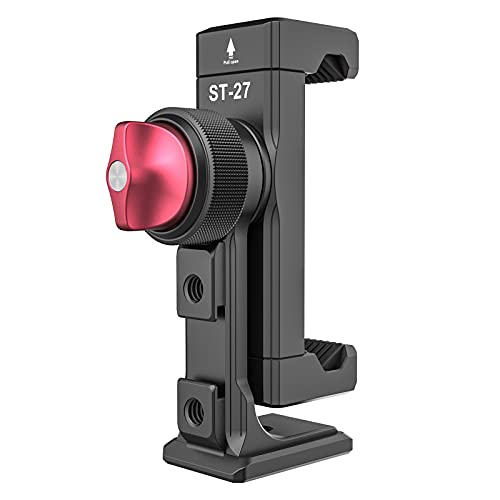
Metal Phone Tripod Mount 3 Cold Shoes & Arca Port, 360° Smartphone Tripod | Adapter for iPhone 17 16 15 Cell Phone Stand Holder for Desktop Video Live Streaming Vlogging Rig
Best universal mount for phone tripods
$25.95
Check price on AmazonPrices as of Oct 22, 2026, 4:41 AM UTC. Product prices and availability are accurate as of the date/time indicated and are subject to change. Any price and availability information displayed on Amazon.com at the time of purchase will apply to the purchase of this product.
Frequently Asked Questions
Everything you need to know about image conversion.