EXIF Data and Photo Privacy: What Your Images Reveal About You
Every photo you take carries hidden data — often including the exact GPS coordinates where it was shot. Here is what is inside, who can read it, and how to strip it before you post.
What EXIF data actually is
EXIF (Exchangeable Image File Format) is a block of metadata written into the file by your camera or phone at the moment of capture. It sits alongside the pixels, invisible unless you go looking for it.
- GPS coordinates — latitude, longitude and often altitude, accurate to a few metres.
- Date and time — including the time zone.
- Device — make, model, and sometimes the phone's serial number or lens ID.
- Camera settings — shutter speed, aperture, ISO, focal length, flash state.
- Software — the app used to edit, and sometimes the edit history.
- Thumbnails — a small preview that occasionally still shows the pre-crop image.
Why this matters more than people think
The obvious risk is location. A photo of a bicycle for sale, taken in your driveway, can publish your home address to anyone who knows how to right-click. Journalists, domestic-abuse survivors, and anyone selling valuables have concrete reasons to care.
The less obvious risk is the pattern. Dozens of photos, each with a timestamp and coordinates, form a movement history: where you live, where you work, when you go on holiday and when the house is empty.
There is also the pre-crop thumbnail problem. Some editors update the main image but leave the embedded thumbnail alone, so the original uncropped frame travels with the file.
Which platforms strip EXIF and which do not
| Where the photo goes | EXIF removed? |
|---|---|
| Facebook, Instagram, X, LinkedIn | Yes, on upload |
| WhatsApp, Signal, Telegram (compressed send) | Yes |
| WhatsApp / Telegram "send as file" | No |
| Email attachments | No |
| Cloud links (Drive, Dropbox, iCloud) | No |
| Your own website or blog upload | Usually no |
| Marketplace listings (Craigslist, Facebook Marketplace) | Usually yes, but not guaranteed |
The dangerous cases are the ones people treat as private: emailing a photo to a stranger, sharing a cloud folder, or uploading directly to your own site.
How to remove EXIF data
The easiest method: convert the image
Converting a photo through a browser-based canvas re-encodes the pixels and writes a brand new file with no metadata block at all. Run your photo through our WEBP to JPG converter, PNG to JPG converter or compress to size tool and the output is metadata-free. Because everything happens on your device, the original never reaches a server either. If the picture itself shows something private — a face, a number plate, an address on a parcel — hide it with the blur image tool before you post it.
On iPhone
- Open the photo in Photos and tap the info button.
- Tap Adjust next to the location and choose No Location.
- Or, when sharing, tap Options at the top and switch off Location.
On Android
- Open the photo in Google Photos, swipe up for details.
- Tap the location, then Remove location.
- Turn off location tagging entirely in the Camera app settings.
On Windows
- Right-click the file, choose Properties, then the Details tab.
- Click Remove Properties and Personal Information.
- Choose to create a clean copy, or remove selected fields from the original.
On macOS
Preview can strip location under Tools → Show Inspector → GPS → Remove Location Info. For a batch, exporting through an editor without "include metadata" ticked is faster.
When you should keep EXIF
Metadata is not the enemy. Photographers rely on it to learn from their own settings, to prove authorship, and to sort archives by date and lens. Stock libraries often require IPTC copyright fields. Keep the metadata in your master archive and strip it only on the copies you publish.
A simple publishing rule
- Keep originals with full metadata in your own storage.
- Export a resized, converted copy for anything that goes public.
- Verify one file occasionally by checking its properties before you post a batch.
For the resizing half of that workflow, use the image resizer. For keeping large archives safe and organised, see our photographer workflow guide.
Gear we recommend for this workflow
As an Amazon Associate we earn from qualifying purchases. Affiliate disclosure.
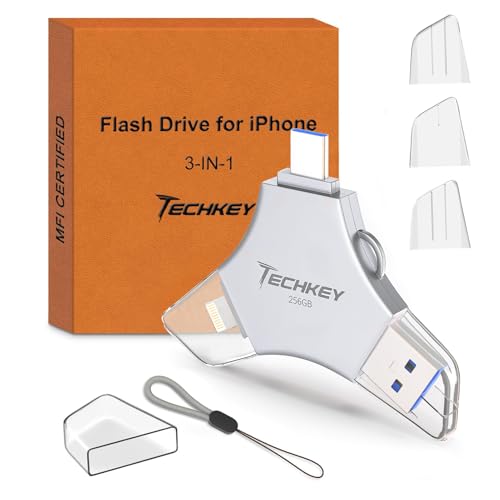
USB Flash Drive for iPhone/iPad, MFi Certified 3in1, 256GB, Silver | External Memory Photo Storge Keeper, Type c/USB 3.0/USB C High Speed, Compatible with PC, Video/Data Backup Card
Best for automatic photo backups from phone or computer
$29.98
Check price on Amazon
Samsung T7 Shield Portable SSD 1TB, USB 3.2 Gen 2, Up to 1,050 MB/s | Rugged, IP65 Water Resistant, External Solid State Drive for Photographers, Content Creators and Gaming (MU-PE1T0S/AM), Black
Best for photographers backing up thousands of RAW files
$267.00
Check price on Amazon
Synology DS1825+ Enterprise Video Production & Storage - Scale to 360TB, 25GbE Speed & Mission-Critical Reliability (8-Bay Diskless NAS)
Best for whole-studio shared photo storage
$1,478.45
Check price on Amazon
SanDisk 256GB Extreme PRO SD UHS-I Card, Up to 250MB/s Read and 170MB/s Write, 4K UHD, Full HD, U3, V30, SDSDXXJ-256G-GSCIN
Best for extended shooting sessions
$92.99
Check price on AmazonPrices as of Oct 22, 2026, 4:41 AM UTC. Product prices and availability are accurate as of the date/time indicated and are subject to change. Any price and availability information displayed on Amazon.com at the time of purchase will apply to the purchase of this product.
Image Optimization Tips
Get weekly tips on image formats, compression, and web performance.
No spam, unsubscribe anytime. We respect your privacy.