Crop an Image into a Circle
Round profile pictures, logos and team photos in seconds: drag to centre, zoom, add an optional ring, and save a PNG with transparent corners. Private — your photo never leaves this browser.
Updated September 2026 · Free · Works entirely in your browser
Do you even need to crop it round?
Most social networks, chat apps and video-call tools already display profile pictures as circles — they take a square upload and mask it. For those, upload a square with the face centred and plenty of margin. A pre-cropped circle matters when you control the display: a website team page, an email signature, a slide, a document, a sticker or a logo placed over a coloured background. There, a PNG with transparent corners sits cleanly on any colour.
Framing a face so it looks right in a circle
- Put the eyes roughly one third down from the top of the circle, not dead centre.
- Leave a little space above the head; circles cut corners, so tight crops lose the top of the hair.
- Zoom until the shoulders just meet the edge — faces that are too small disappear at avatar sizes.
Logos in a circle
Wide logos rarely survive a circular crop. Use just the symbol, or pad the logo onto a square canvas first with the image resizer, then crop. A thin ring in your brand colour helps a round logo stand out on busy backgrounds.
Need a rectangle or a fixed ratio instead? Use the image cropper. For an exact square pixel size, see the 512 × 512 and 1080 × 1080 converters.
Gear we recommend for this workflow
As an Amazon Associate we earn from qualifying purchases. Affiliate disclosure.

UBeesize 14'' LED Foldable Ring Light with 62'' Tripod Stand, Selfie Ring Light for Video Recording, Live Streaming, TikTok & YouTube, Compatible with iPhone & Android (Black)
Best for even, flattering lighting
$34.77
Check price on Amazon
Logitech Brio Ultra 4K HD Webcam for Streaming and Meetings - Black
Best for high-quality video calls and streaming
$169.99
Check price on Amazon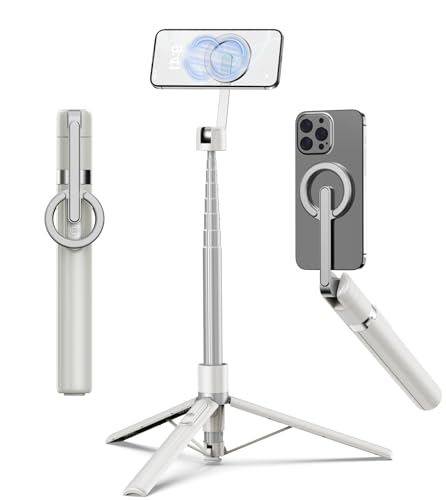
TONEOF 68" Magnetic Aluminum Phone Tripod Selfie Stick for iPhone & Android
Best for stable iPhone photos and video
$29.99
Check price on Amazon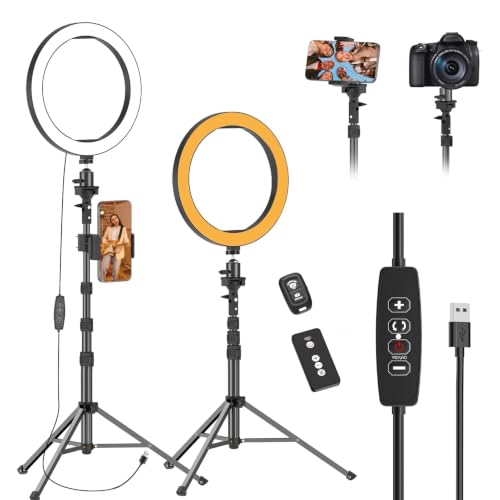
EMART 10" Ring Light with 55" Extendable Tripod Stands and Phone Holder
Best for even, flattering lighting
$22.99
Check price on AmazonPrices as of Sep 28, 2026, 2:21 AM UTC. Product prices and availability are accurate as of the date/time indicated and are subject to change. Any price and availability information displayed on Amazon.com at the time of purchase will apply to the purchase of this product.
Frequently Asked Questions
Everything you need to know about image conversion.