Convert JFIF to JPG in One Click
Windows saved your photo as .jfif and a website won't take it? Turn it into a normal .jpg in seconds — free, batch-capable and nothing is uploaded.
Drag & drop images here
or browse files · WEBP, JPG, JFIF, PNG, HEIC, AVIF, TIFF, GIF, BMP
No file size limit · 100% free · No signup required
JFIF to JPG: what the conversion actually does
A .jfif file is already a JPEG — JFIF is the JPEG File Interchange Format, the wrapper almost every JPEG has used since 1992. Windows and Chrome sometimes save downloads with the .jfif extension instead of .jpg, and upload forms that check the extension reject it. Converting here re-saves the picture as a normal .jpg that every site, app and printer accepts.
How to convert JFIF to JPG
- 1Drop your .jfif files above — Windows downloads folders often hold dozens.
- 2Leave the output on JPG and quality at 92 or higher; the picture is already JPEG-compressed, so a high setting keeps it identical to the eye.
- 3Convert and download the .jpg files, or a ZIP of all of them.
Why your picture saved as .jfif in the first place
Windows keeps a registry entry that maps the image/jpeg content type to a default file extension. On many machines — usually after some software reinstalled or changed it — that default became .jfif instead of .jpg. From then on, every JPEG you save from Chrome, Edge or the Windows Photos app can arrive with a .jfif ending, even though the bytes inside are exactly what a .jpg would contain.
Nothing is wrong with the image. The problem is purely the label: upload forms, marketplace listings, government portals and many photo printing services validate the extension against a list such as .jpg, .jpeg, .png, and .jfif is not on it. That is why you see messages like "file type not supported" or "use a file in one of these formats" for something that is plainly a photo.
JFIF, JPG and JPEG compared
| .jfif | .jpg / .jpeg | |
|---|---|---|
| Image data inside | Baseline or progressive JPEG | Baseline or progressive JPEG — the same |
| Opens in Windows Photos, Preview, browsers | Yes | Yes |
| Accepted by upload forms that check the extension | Often rejected | Accepted almost everywhere |
| Transparency | Not supported | Not supported |
| File size after conversion here | — | Within a few percent of the original at quality 92+ |
Can you just rename .jfif to .jpg?
Usually, yes — and it is worth knowing. Because the data really is JPEG, changing the extension in File Explorer (with "File name extensions" switched on under View) makes most uploaders accept it. The converter is the better choice when you have many files, when you are on a phone or a locked-down work PC where you cannot see extensions, or when a site also inspects the file header and wants a clean re-encode with standard metadata.
To stop Windows producing .jfif files at all, the durable fix is to open the Registry Editor, go to HKEY_CLASSES_ROOT\MIME\Database\Content Type\image/jpeg and set its Extension value to .jpg. Only do that if you are comfortable editing the registry; converting or renaming is safer.
The other JPEG aliases
- .jpe and .jif — rare older extensions for the same format; this converter treats them the same way.
- .pjpeg and .pjp — progressive JPEGs saved by some older browsers. Also plain JPEG inside.
- .jpeg vs .jpg — identical. The three-letter version exists because early Windows limited extensions to three characters.
Privacy
Nothing is uploaded. The file is decoded and re-encoded by your own browser using the Canvas API, so the image never leaves your device and there is no queue, no size cap and no account.
Three mistakes to avoid
Converting to PNG to "fix" a .jfif
It works, but the file gets three to ten times larger for no visible gain. A photo should go to JPG.
Dropping the quality to 70
The image is already JPEG-compressed. Re-encoding at a low setting stacks a second round of artefacts on top. Stay at 92 or above.
Assuming the file is damaged
A .jfif that opens in your browser or Photos app is a healthy JPEG. The rejection comes from the upload form's extension list, not from the picture.
Keep reading
Why Choose Our Converter?
Built for speed, privacy, and simplicity. No compromises.
Batch Conversion
Convert hundreds of WEBP images to JPG at once. No file limits.
Quality Control
Fine-tune JPEG quality from 10% to 100% with a simple slider.
ZIP Download
Download all converted files in a single ZIP archive instantly.
100% Private
All processing happens in your browser. No files are uploaded to any server.
Works Everywhere
Mobile, tablet, or desktop — convert images on any device, any browser.
Lightning Fast
Client-side processing means instant conversions with zero waiting.
How It Works
Three simple steps to convert your images.
Upload
Drag & drop your WEBP files or click to browse.
Adjust
Set quality, resize, and other options.
Convert & Download
Click convert and download your JPGs instantly.
Frequently Asked Questions
Everything you need to know about image conversion.
Gear we recommend for this workflow
As an Amazon Associate we earn from qualifying purchases. Affiliate disclosure.

Apple MacBook Air with Apple M3 Chip, 13-inch, 8GB RAM, 256GB SSD Storage, Midnight (Renewed)
Best lightweight laptop for casual editing
View on Amazon
Anker USB C Hub, 7in1 Multi-Port USB Adapter for Laptop/Mac, 4K@60Hz USB C to HDMI Splitter, 85W Max PD, 2 USB 3.0 & 1 USBC Data Ports, SD/TF Card Reader, for Type C Devices (Charger Not Included)
Best for connecting cards, drives and displays
View on Amazon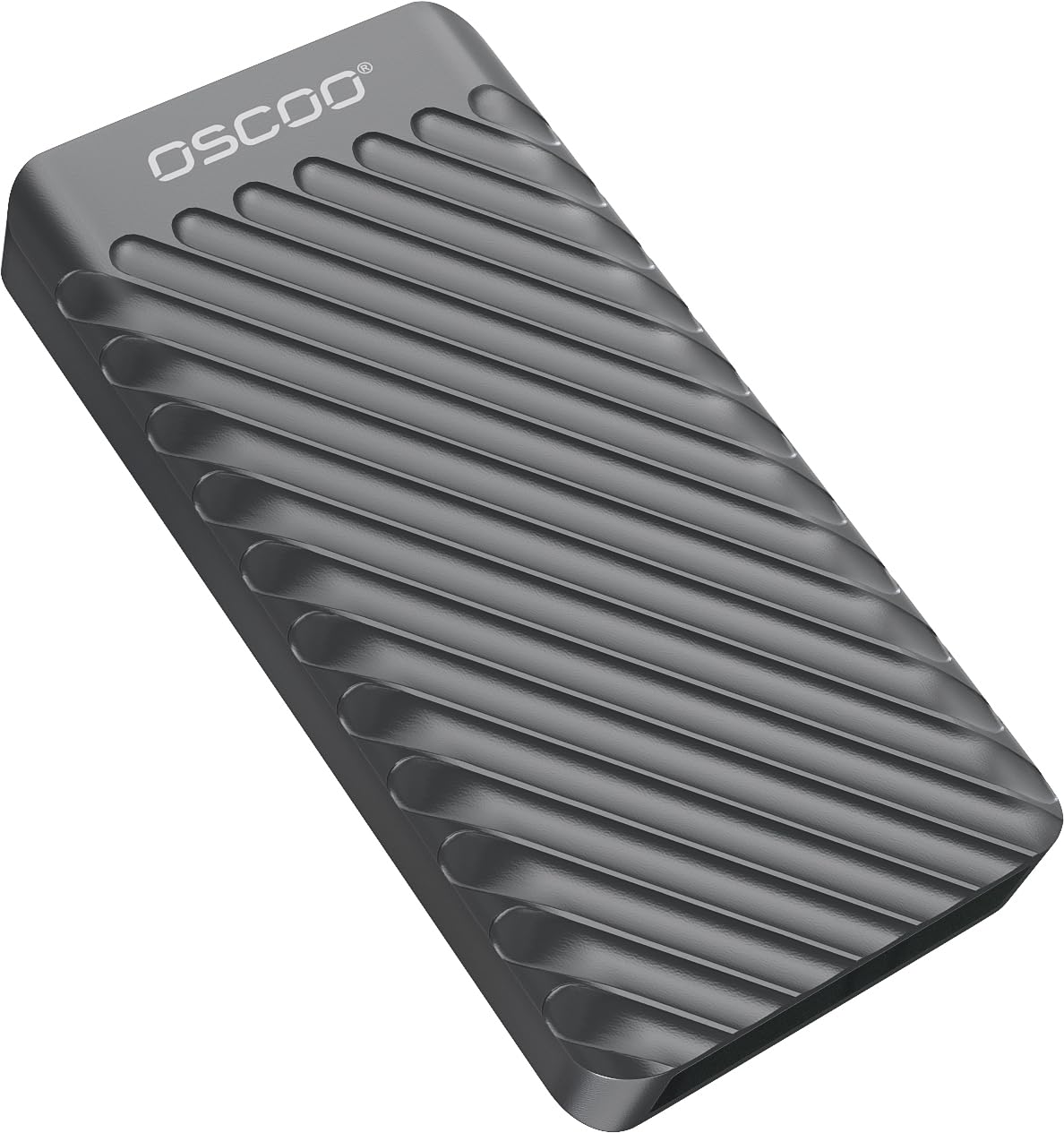
Sponsored Ad - 2TB External Hard Drive, Up to 2100MB/s, USB 3.2 Gen 2 Portable SSD, External Solid State Drive for Mac, Windows PC, Laptops, Gaming, iPhone — Ideal for File Backup, Content Creators & Videographers
Best for photographers backing up thousands of RAW files
View on Amazon
MX Master 3S Bluetooth Edition Wireless Mouse, No USB Receiver - Ultra-Fast Scrolling, Ergo, 8K DPI, Track on Glass, Quiet Clicks, Works with Apple Mac, Windows PC, Linux, Chrome - Graphite
Best mouse for long editing sessions
View on AmazonRecommended Tools
Other great tools to complement your image workflow.
Other Free Converters
Free Image Tools
See every utility on the free tools hub.