Convert HEIC to PDF — One Photo or Many
Turn iPhone HEIC photos into a single PDF on your phone or computer. Free, no watermark, no signup, and nothing is uploaded.
Updated May 2026 · Free · Works entirely in your browser
Why turn HEIC photos into a PDF?
HEIC is the format iPhones have used for camera photos since iOS 11. It is efficient, but a lot of the world still cannot read it: Windows needs paid-for or store extensions, many office systems do not recognise it, and upload portals for insurance claims, rental applications, visas, schools and HR onboarding very often accept PDF and nothing else. A PDF also keeps several photos together in a fixed order, which is exactly what you want for a multi-page document you photographed page by page.
How this converter works
- Your browser decodes each HEIC photo with a HEIF decoder that runs inside the page — on your device, not on a server.
- Each decoded photo is re-encoded as a high-quality JPEG and placed on its own page, sized to the photo so nothing is cropped or stretched.
- The pages are written into a standard PDF file that opens in every PDF reader, browser and phone.
Getting a small enough file for email
A 12-megapixel iPhone photo makes a page of roughly 2–4 MB. For a long document, first shrink the photos with the image resizer (about 1600 pixels on the long edge is plenty for a readable page), or convert them with the HEIC to JPG converter at quality 80 and build the PDF from those JPGs with the image to PDF tool.
On iPhone without any website
For a single photo, iOS can do this itself: open the photo, tap Share, choose Print, pinch outward on the page preview to open it full screen, then tap Share again and pick Save to Files. That produces a one-page PDF. For several photos in one PDF, or on Windows and Android, this page is quicker.
What the PDF does not include
Live Photo motion, Portrait depth data and the photo's location and camera metadata are not carried into the PDF — only the visible picture. The text in a photographed document is an image, not selectable text, because there is no OCR step.
Gear we recommend for this workflow
As an Amazon Associate we earn from qualifying purchases. Affiliate disclosure.
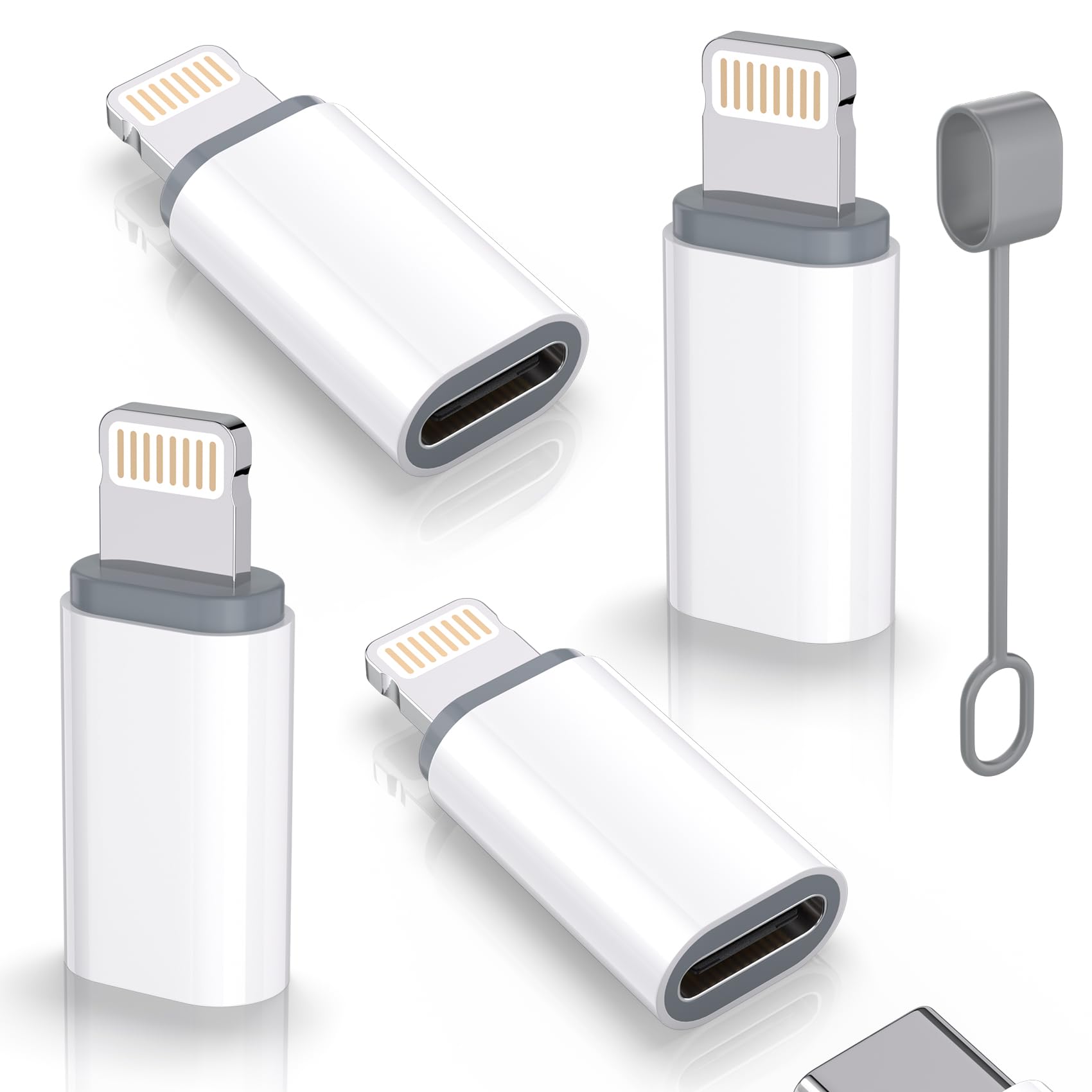
USB C Type C to Lightning Adapter MFi Certified 4 Pack 27W Fast Charging Support Data Sync,Lightning to USB Type C Cable Adapter for iPhone/iPad/for Airpods,with Anti-Lost Loop,Not for Audio/OTG
Best for newer iPhones needing legacy connections
View on Amazon
Apple Lightning to SD Card Camera Reader
Best for importing camera photos to iPhone
View on Amazon![PIXMA G620 Wireless MegaTank Photo All-in-One Printer [Print, Copy, Scan], Black,Works with Alexa](https://m.media-amazon.com/images/I/61+cYWmW0QL.jpg)
PIXMA G620 Wireless MegaTank Photo All-in-One Printer [Print, Copy, Scan], Black,Works with Alexa
Best home photo printer
View on Amazon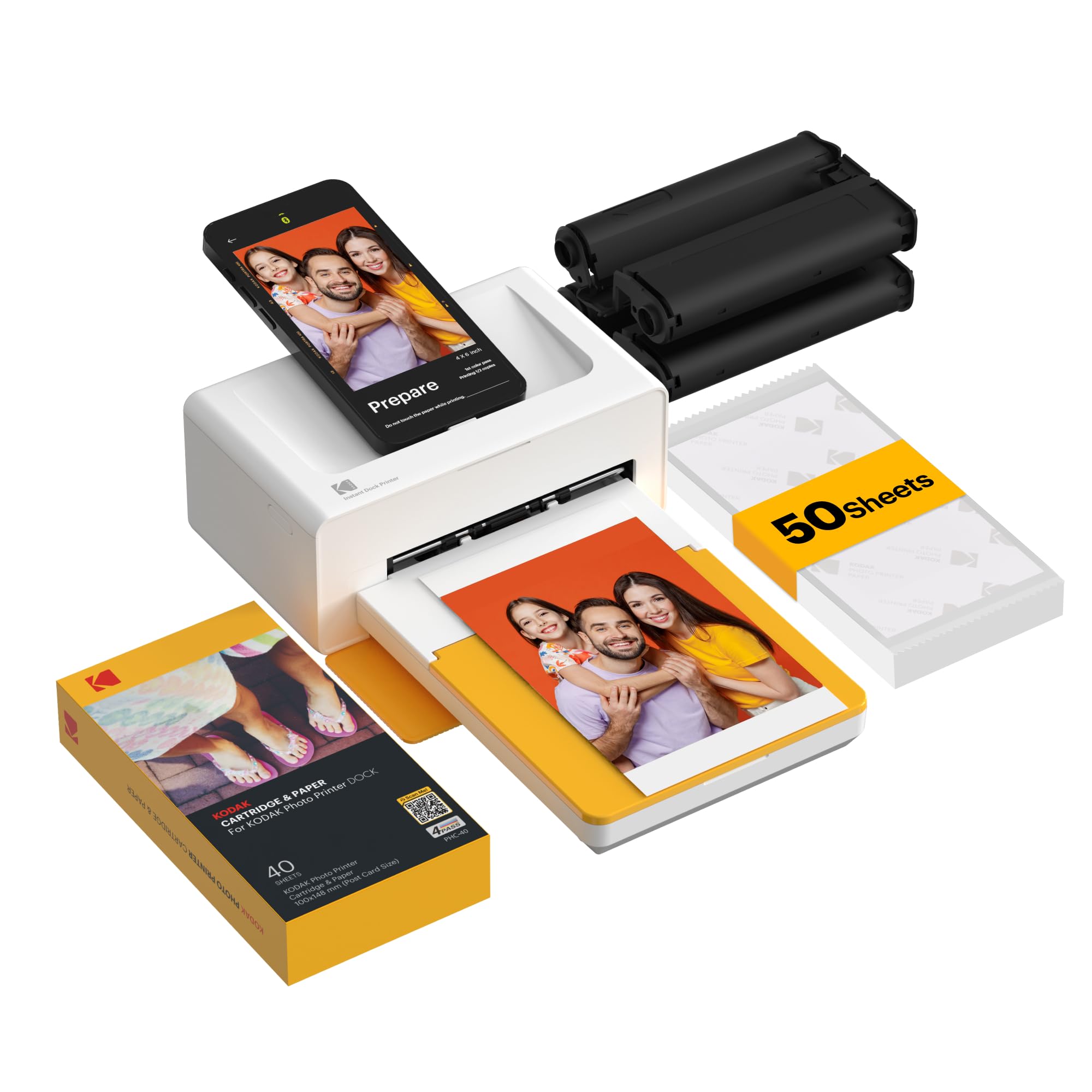
KODAK Dock Plus 4x6'' Photo Printer, 50 Sheets, Docking & Bluetooth Smartphone Printer for iPhone & Android, Instant Color Prints, 4PASS Dye Sublimation
Best for printing directly from your phone
View on AmazonFrequently Asked Questions
Everything you need to know about image conversion.