Convert Screenshots to JPG
Screenshots save as huge PNG files. Turn them into small, email-friendly JPGs in seconds — free, private and entirely in your browser.
Drag & drop images here
or · WEBP, JPG, JFIF, PNG, HEIC, AVIF, TIFF, GIF, BMP
No file size limit · 100% free · No signup required
Screenshot to JPG: what the conversion actually does
Screenshots are saved as PNG by macOS, Windows and most phones, which is why a folder of them is surprisingly large and why some upload forms reject them. Converting to JPG shrinks each one by 70-90% and produces a file that every form, email client and document editor accepts.
How to convert Screenshot to JPG
- 1Drop your screenshots above — PNG, HEIC or anything else your device saved.
- 2Use quality 92 or higher if the screenshot contains text, which most do.
- 3Convert and download, individually or as one ZIP.
Why your screenshots are PNGs
PNG is the sensible default for a screenshot: it is lossless, so text stays exactly as rendered. It is also why a 1920 by 1080 capture of a spreadsheet can be 900 KB and a Retina capture several megabytes.
- macOS saves to PNG by default (Command-Shift-3 or 4).
- Windows Snipping Tool and Print Screen produce PNG.
- iPhone and iPad screenshots are PNG even when the camera is set to HEIC.
- Android varies by manufacturer, but PNG is the common default.
Quality matters more here than for photos
JPEG compression works by discarding high-frequency detail, and a screenshot is almost entirely high-frequency detail — every letter is a hard black-on-white edge. That is why a quality-70 JPG of a photograph looks fine and a quality-70 JPG of a screenshot looks smeared, with grey halos around the text.
Use 92 or above for anything with words in it. You still get a large saving over the PNG, and the text stays sharp.
| Screenshot content | Suggested quality | Typical result |
|---|---|---|
| Text, code, spreadsheets | 92-97 | Sharp text, 60-80% smaller than PNG |
| App UI with icons | 88-92 | Clean, 75-85% smaller |
| A photo or video frame | 82-90 | Indistinguishable, 85-95% smaller |
| A chart or diagram | Keep as PNG | JPEG ringing on thin lines is obvious |
Stop the size problem at the source
- macOS: run 'defaults write com.apple.screencapture type jpg' then 'killall SystemUIServer' in Terminal to capture JPG directly.
- Windows: the Snipping Tool's save dialog offers JPG in the file-type list.
- iPhone: screenshots stay PNG; converting afterwards is the only option.
- Crop before you convert — half a screenshot is half the pixels, and cropping costs no quality at all.
Privacy
Nothing is uploaded. The file is decoded and re-encoded by your own browser using the Canvas API, so the image never leaves your device and there is no queue, no size cap and no account.
Three mistakes to avoid
Converting at quality 70 to hit a size limit
Crop or resize instead. Dropping the quality on text is the most visible thing you can do to a screenshot.
Forgetting what is in the screenshot
Conversion keeps every pixel visible in the original, including tabs, notifications and account names. Crop or redact before sharing.
Assuming JPG always wins
For a screenshot of a simple diagram or a mostly-white page, PNG can be both smaller and sharper. Compare the two.
Keep reading
Why Choose Our Converter?
Built for speed, privacy, and simplicity. No compromises.
Batch Conversion
Convert hundreds of WEBP images to JPG at once. No file limits.
Quality Control
Fine-tune JPEG quality from 10% to 100% with a simple slider.
ZIP Download
Download all converted files in a single ZIP archive instantly.
100% Private
All processing happens in your browser. No files are uploaded to any server.
Works Everywhere
Mobile, tablet, or desktop — convert images on any device, any browser.
Lightning Fast
Client-side processing means instant conversions with zero waiting.
How It Works
Three simple steps to convert your images.
Upload
Drag & drop your WEBP files or click to browse.
Adjust
Set quality, resize, and other options.
Convert & Download
Click convert and download your JPGs instantly.
Frequently Asked Questions
Everything you need to know about image conversion.
Gear we recommend for this workflow
As an Amazon Associate we earn from qualifying purchases. Affiliate disclosure.

Samsung T7 Shield Portable SSD 1TB, USB 3.2 Gen 2, Up to 1,050 MB/s | Rugged, IP65 Water Resistant, External Solid State Drive for Photographers, Content Creators and Gaming (MU-PE1T0S/AM), Black
Best for photographers backing up thousands of RAW files
$267.00
Check price on Amazon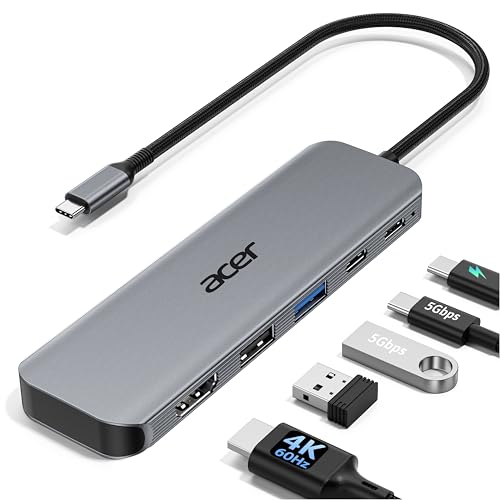
Acer USB C Hub, 5-in-1 USBC to HDMI Adapter with 4K@60Hz for Laptop/Mac | USBC Splitter Docking Station with HDMI 2.0, 100W PD, USB-C, USB-A 3.0 & USB-A 2.0 Data Ports for iPad Pro, iPhone 17 Pro Max
$15.97
Check price on Amazon
BenQ PD2706U Mac-Ready Monitor 27” 4K UHD, 90W USB-C, 99% sRGB, 95% P3, DeltaE ≤3, DisplayHDR 400, IPS, AQCOLOR, Factory-Calibrated, Uniformity, HotKey Puck, Ergonomic, DisplayPort, KVM, USB Hub
Best for accurate color when editing photos
$399.99
Check price on Amazon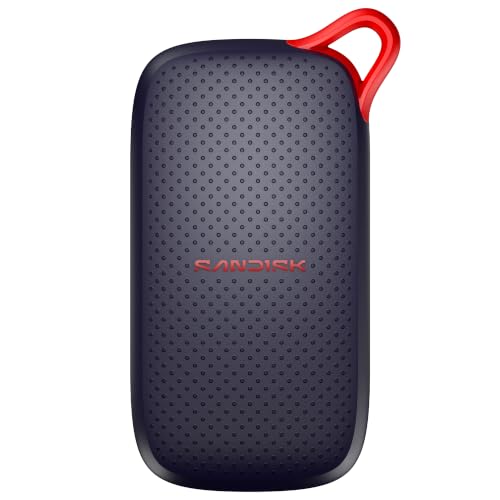
Sandisk 1TB Portable SSD, Up to 1000MB/s Read Speeds, Black (New Model) | External Solid State Drive, Compatible with Laptops & Tablets, Up to 2M Drop Protection, Up to 5x faster than HDD Pocket Size
Best for photographers backing up thousands of RAW files
$159.99
Check price on AmazonPrices as of Oct 22, 2026, 4:41 AM UTC. Product prices and availability are accurate as of the date/time indicated and are subject to change. Any price and availability information displayed on Amazon.com at the time of purchase will apply to the purchase of this product.
Recommended Tools
Other great tools to complement your image workflow.
Other Free Converters
Free Image Tools
See every utility on the free tools hub.