Turn Images and Screenshots into a PDF
Combine screenshots, photos or scans into a single PDF. Everything is built on your own device — no upload, no watermark, no signup.
Updated May 2026 · Free · Works entirely in your browser
Why make a PDF instead of sending images?
A PDF keeps pages in order, opens identically on every device, and is the format most schools, landlords, insurers and government portals actually accept. Sending eight separate screenshots invites confusion; sending one eight-page PDF does not.
Screenshots from a phone
Phone screenshots are usually PNG, which makes a bulky PDF. This tool re-encodes each page as a high-quality JPEG, so a ten-screenshot PDF typically lands under 2 MB and sails through email attachment limits. If you would rather keep the individual files, use the screenshot to JPG converter instead.
Need smaller pages?
Shrink the images first with the compress to an exact KB size tool, or trim the dead space with the image cropper, then build the PDF.
When a PDF beats sending the images
A PDF fixes the order, the page size and the layout. That matters whenever the pictures are really a document: receipts for an expense claim, a signed form photographed page by page, a passport and visa together, a set of meter readings, a portfolio you want someone to scroll rather than shuffle. Attaching eight JPGs asks the recipient to work out the order; attaching one PDF does not.
Plenty of systems only accept PDF — government upload forms, insurance claims portals, most university submission systems and a good share of HR onboarding tools. Converting on the way in saves a bounced submission.
Page size and orientation
Each image is placed on its own page and scaled to fit while keeping its proportions, so nothing is cropped or stretched. A portrait photo lands on a portrait page and a landscape one on a landscape page. If you need every page the same way round, rotate the odd ones out before converting — the rotate and flip tool does it in two taps and costs no quality.
Keeping the file small enough to email
- Resize each photo to about 1600 pixels on the long edge first. A 12-megapixel photo carries far more detail than any page of a PDF can show.
- Convert screenshots and photos to JPG before adding them. A PDF made from PNGs of photographs is several times larger for no visible gain.
- Crop away desk, floor and background. Fewer pixels, smaller file, more readable page.
- Keep a document scan to one page per image rather than photographing two pages at once — text stays far more legible.
Photographing a document so it reads well
Flat, even light with no shadow across the page; the camera square to the paper rather than at an angle; the page filling the frame. Those three things do more for legibility than any amount of processing afterwards. If your phone has a document scanner built into its Notes or Files app, it will deskew and flatten the page for you — export that image and convert it here.
What this tool does not do
The text in the PDF is a picture of text, not selectable text. There is no OCR step, so the result is not searchable and cannot be copied from. If you need searchable text, run the scan through an OCR tool — most desktop scanner software and several phone scanner apps do this — before or instead of converting here. Equally, the PDF is not encrypted or password protected; it is an ordinary file.
As with everything on this site, the conversion happens in your browser. A photographed passport, payslip or medical letter is not uploaded anywhere, which is exactly the property you want for those documents.
Gear we recommend for this workflow
As an Amazon Associate we earn from qualifying purchases. Affiliate disclosure.
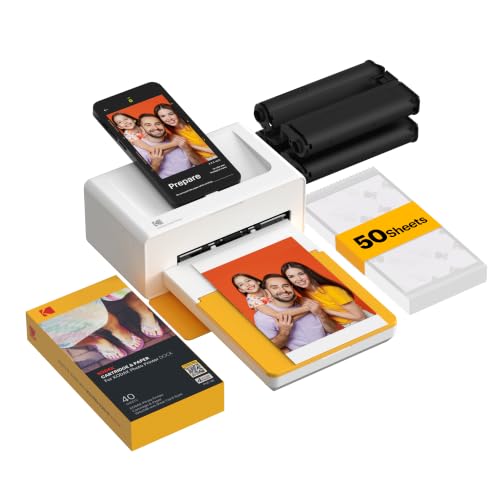
KODAK Dock Plus 4x6 Photo Printer, Smartphone Docking, 4PASS, 50 Sheets | Bluetooth, iPhone & Android Smartphone Compatible, Charge While Printing, Water, Fingerprint and Fade Resistant
$129.99
Check price on Amazon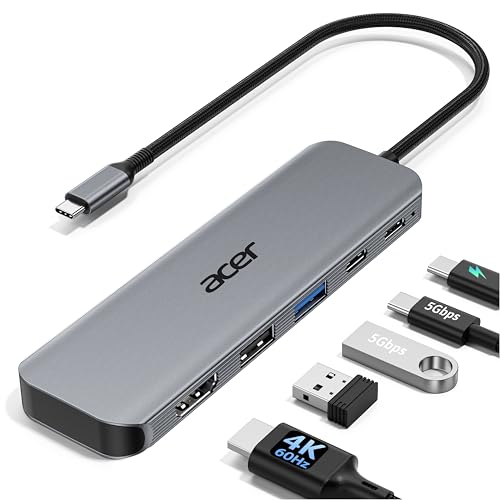
Acer USB C Hub, 5-in-1 USBC to HDMI Adapter with 4K@60Hz for Laptop/Mac | USBC Splitter Docking Station with HDMI 2.0, 100W PD, USB-C, USB-A 3.0 & USB-A 2.0 Data Ports for iPad Pro, iPhone 17 Pro Max
$15.97
Check price on Amazon
Reastar Glossy Photo Paper 8.5 × 11, 36 Sheets Inkjet Photo Printer Paper | Instant Dry, 180gsm/48lb, Blank Back, Reflective Finish, Advanced Cast Coating, DIY Chip Bag/Flyer/Card/Calendars/Brochures
$6.99
Check price on Amazon
Nelko PP01 Photo Printer, 2x3 Portable Photo Printer, Mini Printer, Pink | Instant Color Sticker Printer for Smartphones, Sticky-Back Photos, Bluetooth Compatible with iOS & Android, AI App Editing
$69.99
Check price on AmazonPrices as of Oct 22, 2026, 4:41 AM UTC. Product prices and availability are accurate as of the date/time indicated and are subject to change. Any price and availability information displayed on Amazon.com at the time of purchase will apply to the purchase of this product.
Frequently Asked Questions
Everything you need to know about image conversion.