How to Batch Convert HEIC to JPG
Converting one photo is easy. Converting eight hundred of them, off a phone, without paying for anything or uploading your family photos to a stranger's server, is the part that needs a plan.
Updated September 2026
The short answer: Drop the whole folder onto a browser-based converter and download the result as a single ZIP — there is no per-batch limit because the work happens on your own machine. On a Mac, Finder's Convert Image Quick Action does the same job natively. On Windows there is no built-in equivalent, so the browser is the free route.
Get the files off the phone first
Most of the pain in a bulk conversion happens before any converting starts. Getting several hundred photos off an iPhone cleanly is its own problem.
- USB cable to a PC: the phone appears as a device, and the photos are under Internal Storage, DCIM. This copies the original HEIC files.
- USB cable to a Mac: open Image Capture rather than Photos — it lets you choose a destination folder and does not try to build a library.
- iCloud Photos on the web: select and download, which gives you a ZIP. Large selections sometimes arrive as several ZIPs.
- Do not use a messaging app to move them. It re-compresses everything and you lose quality before you start.
The browser route — any operating system
Because the decoding runs in your browser rather than on a server, there is no queue, no per-file cap and no daily limit. The practical constraint is memory: a few hundred files at a time is comfortable on a laptop, and if a very large batch slows the machine down, split it into two or three passes.
- Open the HEIC to JPG converter.
- Drag the whole folder onto the drop zone, or use the folder upload button.
- Set quality once — 90 or above for photos you are keeping.
- Convert, then use Download All to get a single ZIP.
The Mac route — Finder's built-in converter
This has been built into macOS since Monterey and handles large selections without complaint. Untick Preserve Metadata if the photos are going anywhere public — otherwise every file keeps its GPS coordinates.
- Select every HEIC file in Finder — Command-A selects the whole folder.
- Right-click the selection, choose Quick Actions, then Convert Image.
- Set Format to JPEG, Image Size to Actual Size, and decide about metadata.
- Click Convert. Every copy lands in the same folder.
Set up a folder that converts automatically
If you import from a phone regularly, do this once and never think about it again. On a Mac, Automator can attach a Folder Action to a watched folder: anything dropped in is converted to JPEG automatically. On Windows, a scheduled script using a command-line tool such as ImageMagick does the same thing.
It is twenty minutes of setup that pays for itself the third time you import.
Settings that matter when you are doing hundreds
| Setting | Choose | Why |
|---|---|---|
| Quality | 90-95 | You cannot redo a batch of 800 without noticing |
| Resize | Off, unless you know the target | Resizing is easy later; recovering detail is not |
| Metadata | Keep for archives, strip for sharing | Dates make a library usable; GPS is a privacy risk |
| Output | ZIP | Several hundred separate downloads is unmanageable |
| Originals | Keep them | HEIC is half the size and holds more data |
Keep the originals
A converted JPG is a delivery copy. The HEIC holds 10-bit colour, any Portrait-mode depth map and Live Photo motion, and takes roughly half the space. Once you have the JPGs you need, archive the HEICs rather than deleting them — you cannot get back what the conversion discarded.
Frequently asked questions
How many HEIC files can I convert at once?
There is no limit imposed by the tool, because the work happens on your own device rather than on a server. The practical ceiling is your machine's memory — a few hundred at a time is comfortable on most laptops, and very large batches are best split into two or three passes.
Is there a free way to bulk convert HEIC on Windows?
Yes: a browser-based converter handles the whole folder at once and costs nothing. Windows has no built-in equivalent of the Mac's Convert Image action, and the Microsoft Store codec lets Windows display HEIC but does not convert it in bulk.
Will a big batch upload my photos somewhere?
Not with a converter that runs client-side. This one decodes in your browser — you can load the page, disconnect from the internet, and convert the whole batch offline. Many other online converters do upload, so it is worth checking before feeding one a camera roll.
How do I keep the photos in date order after converting?
Keep the metadata. The EXIF date is what photo software sorts by, and conversions that strip metadata leave you with files that sort by the date you converted them. If you also need the filenames in order, rename before converting, not after.
Can I batch convert on a phone?
Yes, by selecting multiple files in the picker, though phones run out of memory sooner than computers. For a whole camera roll, move the files to a computer first — it is faster and less likely to stall.
Should I delete the HEIC files afterwards?
No. They are half the size and hold more image data than the JPGs you made from them, including depth maps and Live Photo motion. Archive them; the JPGs are the copies you hand out.
Keep reading
- Convert HEIC to JPG now
- Batch convert images: the full guide
- How to convert HEIC to JPG on Windows
- How to convert HEIC to JPG on a Mac
- EXIF viewer and remover
- HEIC to JPG on Android
- Batch convert WEBP to JPG as well
Gear we recommend for this workflow
As an Amazon Associate we earn from qualifying purchases. Affiliate disclosure.

Samsung T7 Shield Portable SSD 1TB, USB 3.2 Gen 2, Up to 1,050 MB/s | Rugged, IP65 Water Resistant, External Solid State Drive for Photographers, Content Creators and Gaming (MU-PE1T0S/AM), Black
Best for photographers backing up thousands of RAW files
$267.00
Check price on Amazon
Sandisk 2TB Extreme Portable SSD, Up to 1050MB/s, USB-C, USB 3.2 Gen 2, IP65 Water and Dust Resistance, Updated Firmware, External Solid State Drive, SDSSDE61-2T00-G25
Best for pros needing rugged, high-capacity portable storage
$289.99
Check price on Amazon
Synology DS1825+ Enterprise Video Production & Storage - Scale to 360TB, 25GbE Speed & Mission-Critical Reliability (8-Bay Diskless NAS)
Best for whole-studio shared photo storage
$1,480.04
Check price on Amazon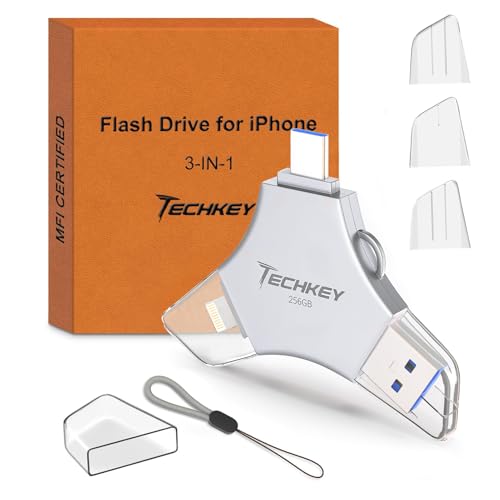
USB Flash Drive for iPhone/iPad, MFi Certified 3in1, 256GB, Silver | External Memory Photo Storge Keeper, Type c/USB 3.0/USB C High Speed, Compatible with PC, Video/Data Backup Card
Best for automatic photo backups from phone or computer
$36.99
Check price on AmazonPrices as of Oct 26, 2026, 4:45 AM UTC. Product prices and availability are accurate as of the date/time indicated and are subject to change. Any price and availability information displayed on Amazon.com at the time of purchase will apply to the purchase of this product.
Image Optimization Tips
Get weekly tips on image formats, compression, and web performance.
No spam, unsubscribe anytime. We respect your privacy.