"Unsupported File Type" on Google Drive: What It Means and How to Fix It
The file uploaded fine. Drive just refuses to preview it. Here is exactly why that happens, and the fastest way to get a file everything will open.
The short answer: to make a file supported, convert it to a format the destination accepts — JPG or PNG for photos, MP4 (H.264 video, AAC audio) for video, PDF for documents — and upload the converted copy. Renaming the extension does not work, because the contents stay the same. For iPhone photos, convert HEIC to JPG; for images saved from websites, convert WebP to JPG.
First, the important distinction
"Unsupported file type" in Google Drive almost never means the upload failed. Your file is stored safely. What Drive is telling you is that its built-in preview engine cannot render that format in the browser. Two very different problems get the same message:
- Preview not supported — the file is there, it just will not display. Downloading it still works.
- Upload rejected — a form inside Drive, Classroom or Gmail refused the extension outright.
The formats Drive commonly refuses to preview
| Format | Where it comes from | Convert to |
|---|---|---|
| .heic / .heif | iPhone photos | JPG |
| .webp | Images saved from websites | JPG or PNG |
| .avif | Modern web images | JPG |
| .tif / .tiff | Scanners, print files | JPG |
| .raw / .cr2 / .nef | Camera raw files | JPG |
| .bmp | Old Windows software | JPG or PNG |
The two-minute fix
- Download the file from Drive back to your phone or computer.
- Convert it: HEIC to JPG, WEBP to JPG, AVIF to JPG, TIFF to JPG or BMP to JPG. Each one runs in your browser — nothing is uploaded anywhere.
- Re-upload the JPG. Drive previews it, Docs accepts it, and so does everyone you share it with.
If you have dozens of files, add them all at once and download a single ZIP. That is what the batch mode on every converter here is for — see the batch conversion guide.
When it is not the format at all
Four other causes produce a similar-sounding error:
- The file exceeds Drive's preview size limit. Very large images and videos skip preview entirely. Shrink it with the compress to an exact size tool.
- The extension is wrong. A file named photo.jpg that is really a WEBP inside will confuse everything. Rename it correctly, or just run it through a converter, which reads the real contents.
- The file is corrupt or partially uploaded. Re-upload it on a stable connection.
- Zero-byte file. Check the size in Drive's details panel. If it says 0 bytes, the original never transferred.
How to make a file supported for upload
"Supported" always means supported by whatever is receiving the file, so start by checking what that form, app or site lists, then convert to the safest match:
| You have | Most forms accept | How to convert |
|---|---|---|
| HEIC photo (iPhone) | JPG | HEIC to JPG |
| WebP or AVIF image | JPG or PNG | WebP to JPG, AVIF to JPG |
| Screenshot (PNG) over the size limit | JPG | Screenshot to JPG |
| Several photos for one upload slot | Image to PDF | |
| HEVC or .mov video | MP4 (H.264) | Re-export from your phone or video editor |
- Find the accepted formats and the size limit on the upload form (usually printed beside the button).
- Check what your file really is with the file type checker — the extension can lie.
- Convert to the first format on the accepted list, and compress if it is over the limit.
- Upload the new file, not the original.
"This video file is an invalid format and is not supported by Drive"
This message appears when Drive stored the video but cannot process it for playback. Google lists the video formats Drive can play as 3GPP, AVI, FLV, MPEG4, MPEG-PS, MOV, MTS, WebM and WMV (Google Drive Help: files you can store), but a supported container can still hold a codec the player does not handle — iPhone HEVC (H.265) video and some screen-recorder output are the usual examples. A new upload can also show this while Drive is still processing it.
- Wait a few minutes after uploading and reload: large videos take time to process before they play.
- Download the file and play it on your device. If it plays, the file is intact and only Drive's player is failing.
- Re-export it as MP4 with H.264 video and AAC audio (on iPhone, Settings → Camera → Formats → Most Compatible records H.264 for future videos).
- If it will not play anywhere, the upload was interrupted — upload it again from the original.
Uploading from an iPhone specifically
iPhones save photos as HEIC by default, which is the single most common cause of this message. You can stop it at the source: Settings → Camera → Formats → Most Compatible makes every new photo a JPG. Existing photos still need converting. The full walkthrough is in HEIC to JPG iPhone settings.
Google Classroom, Forms and Gmail
These are stricter than Drive itself. Classroom assignments and Forms file-upload questions frequently reject HEIC and WEBP outright, and Gmail will attach them but the recipient may not be able to open them. JPG and PDF are the two safest choices. To bundle several images into one PDF, use the image to PDF tool.
Quick reference
- Preview fails but download works? Format issue — convert to JPG.
- Upload rejected? Same fix, convert first.
- Huge file? Compress, then upload.
- Whole camera roll? Batch convert and download one ZIP.
- Still stuck? See fix "file type not supported".
To see what a file really is before you upload it again, run it through the image file type checker — it reads the signature bytes, so a HEIC or WebP renamed to .jpg is caught immediately.
Frequently Asked Questions
How do I make a file supported for upload?
Convert it to a format the destination lists — JPG or PNG for images, MP4 for video, PDF for documents. For photos, a JPG under 1 MB is accepted almost everywhere. Renaming the extension does not change the file and will not help.
Why does Drive say "this video file is an invalid format and is not supported"?
Drive can store any file but only previews common codecs. HEVC videos from iPhones, some screen recordings and damaged uploads fail to preview. Download the file to confirm it is intact, or re-export it as H.264 MP4.
Why does Google Drive say unsupported file type for my iPhone photo?
The photo is HEIC. Drive stores it but some browsers and Classroom or Forms uploads cannot use it. Convert it to JPG, or set the iPhone camera to Most Compatible so new photos are JPG.
Is my file damaged if Drive cannot preview it?
Usually not. A preview failure means Drive's viewer cannot decode the format. Download the file and open it on your device; if it opens there, the file is fine.
Why does an upload say "failed to upload file. unsupported file type"?
The form, not Drive storage, rejected the extension. Check the formats it lists, check what the file really is with a file type checker, and convert it to the first accepted format — usually JPG for photos or PDF for documents.
Does renaming a file to .jpg make it supported?
No. The extension is only a label; the bytes inside are unchanged, so a HEIC or WebP renamed to .jpg is still rejected or shows as broken. Convert the file instead.
Gear we recommend for this workflow
As an Amazon Associate we earn from qualifying purchases. Affiliate disclosure.

Samsung T7 Shield Portable SSD 1TB, USB 3.2 Gen 2, Up to 1,050 MB/s | Rugged, IP65 Water Resistant, External Solid State Drive for Photographers, Content Creators and Gaming (MU-PE1T0S/AM), Black
Best for photographers backing up thousands of RAW files
$267.00
Check price on Amazon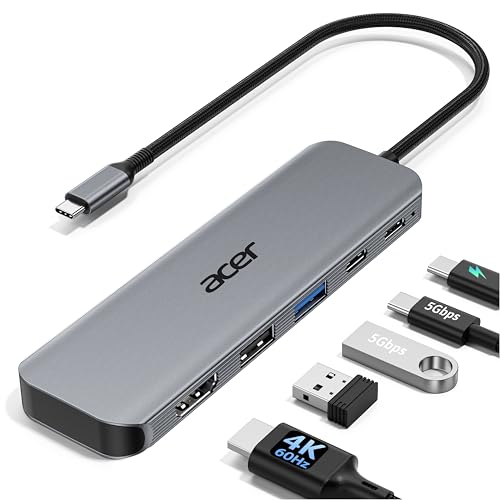
Acer USB C Hub, 5-in-1 USBC to HDMI Adapter with 4K@60Hz for Laptop/Mac | USBC Splitter Docking Station with HDMI 2.0, 100W PD, USB-C, USB-A 3.0 & USB-A 2.0 Data Ports for iPad Pro, iPhone 17 Pro Max
$15.97
Check price on Amazon
Kingston Ironkey Locker+ 50 G2 32GB Encrypted USB Drive | FIPS 197 | AES-XTS Protection | Multi-Password Security | USB 3.2 Gen 1 | IKLP50G2/32GB
$51.29
Check price on Amazon
Sandisk 1TB Portable SSD, Up to 1000MB/s Read Speeds, Black (New Model) | External Solid State Drive, Compatible with Laptops & Tablets, Up to 2M Drop Protection, Up to 5x faster than HDD Pocket Size
Best for photographers backing up thousands of RAW files
$159.99
Check price on AmazonPrices as of Oct 22, 2026, 4:41 AM UTC. Product prices and availability are accurate as of the date/time indicated and are subject to change. Any price and availability information displayed on Amazon.com at the time of purchase will apply to the purchase of this product.
Image Optimization Tips
Get weekly tips on image formats, compression, and web performance.
No spam, unsubscribe anytime. We respect your privacy.